|
Active Directory : Configure DC
2017/02/07 |
|
Configure New DC (Domain Controler).
|
|
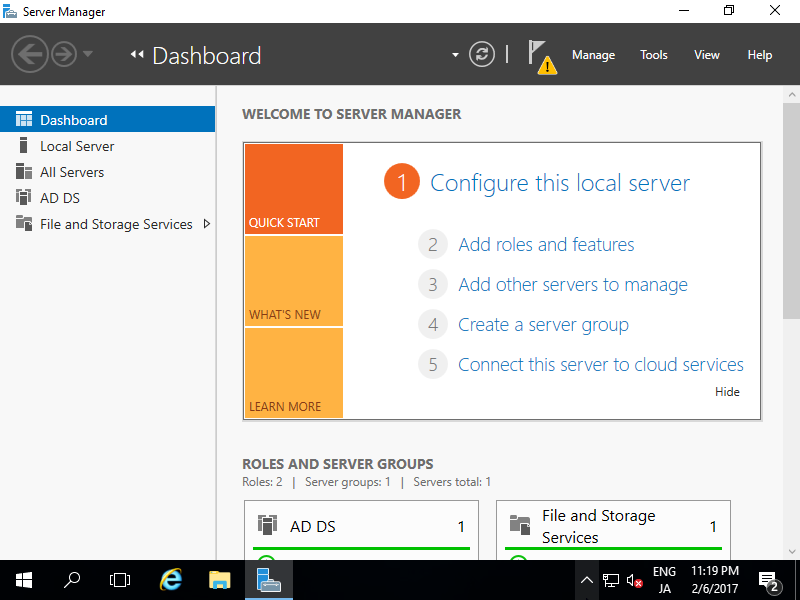
| [1] | Run [Server Manager] and click [AD DS]. |
|
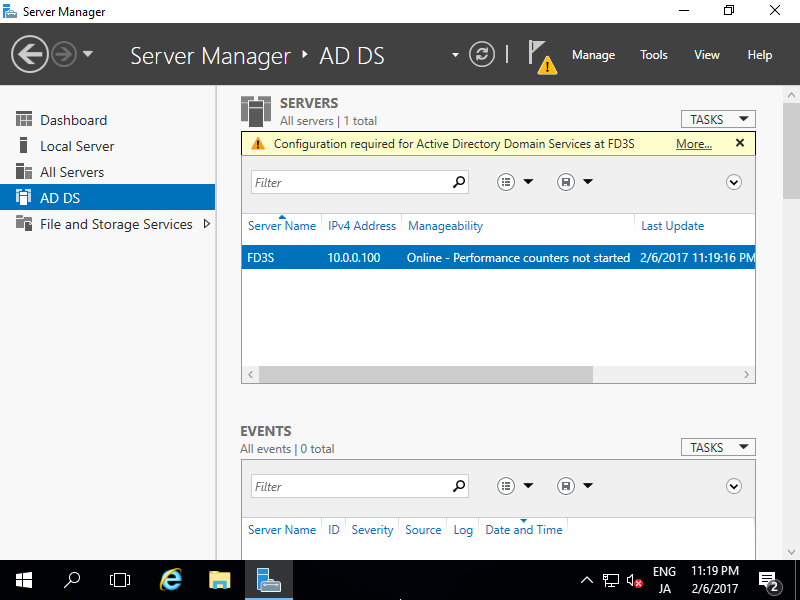
| [2] | Click [More...] link which is upper-right. |
|
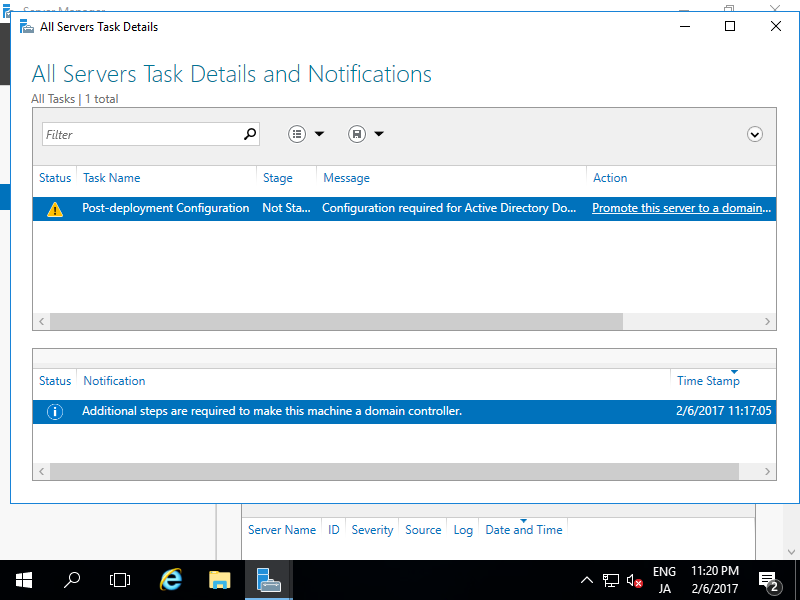
| [3] | Click [Promote this server to domain...] link. |
|
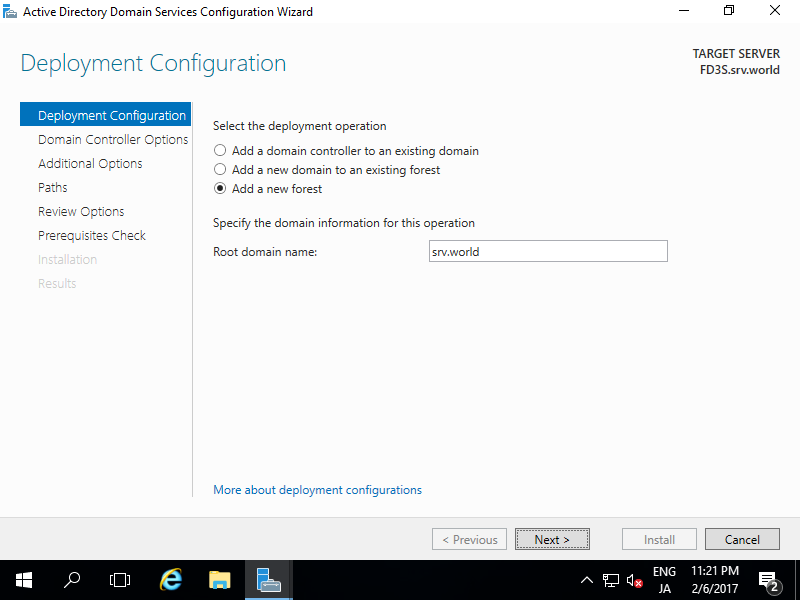
| [4] | Check a box [Add a new forest] and input any Domain name you'd like to set for [Root domain name] field. |
|
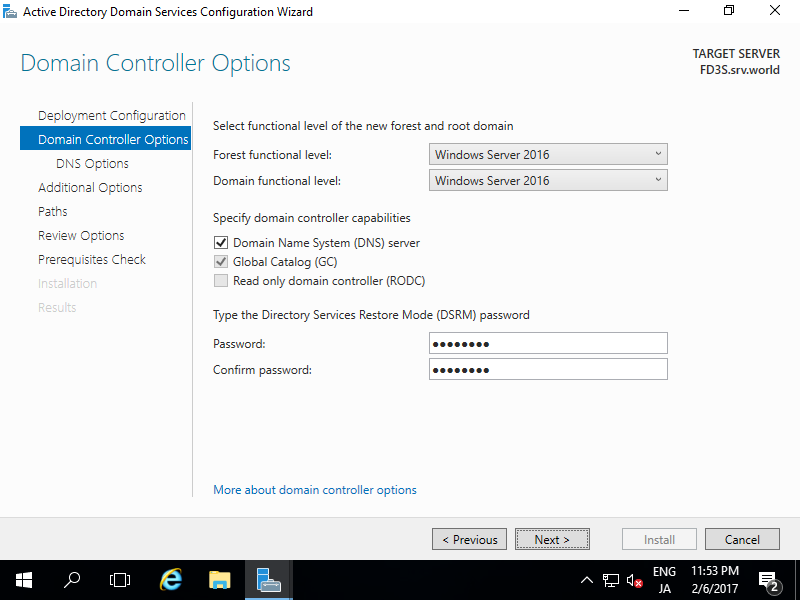
| [5] | Select [Forest functional level] and [Domain functional level]. This example shows to select [Windows Server 2016] both. Furthermore, Set any password for Directory Services Restore Mode. |
|
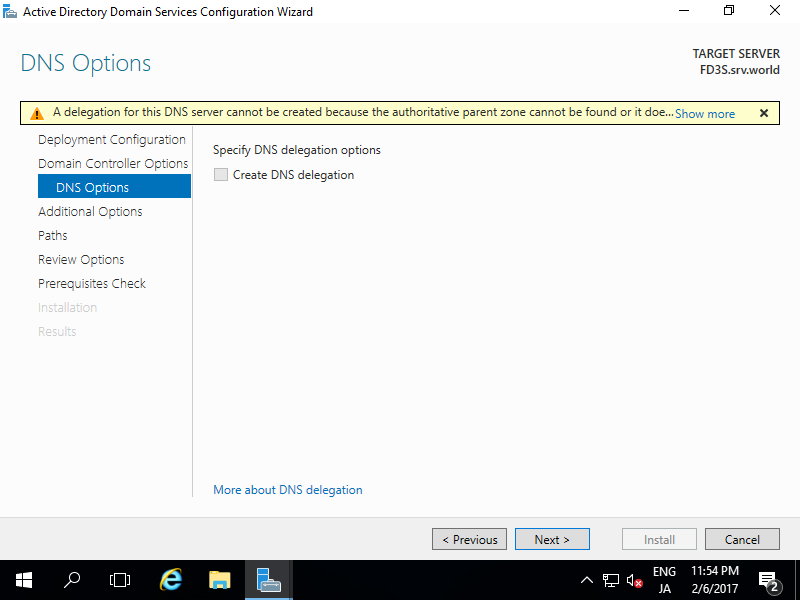
| [6] | Click [Next] button. |
|
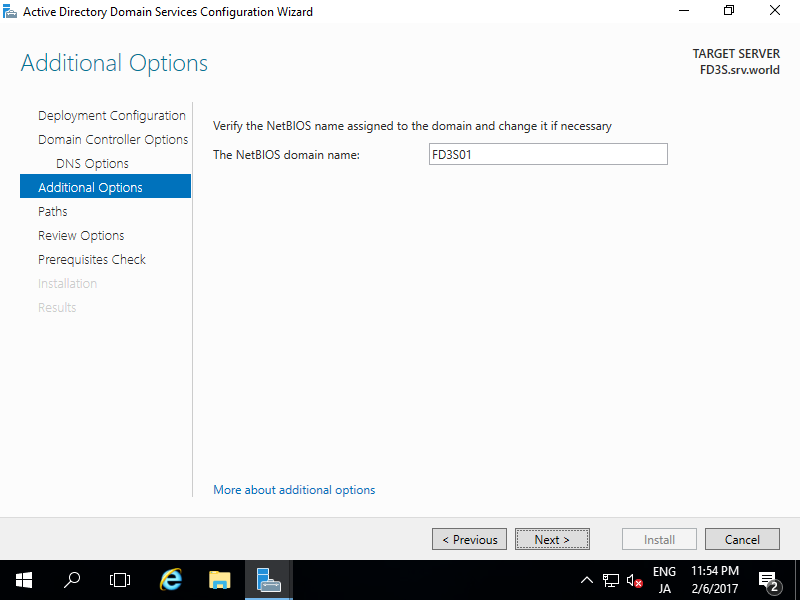
| [7] | Input NetBIOS name you'd like to set. |
|
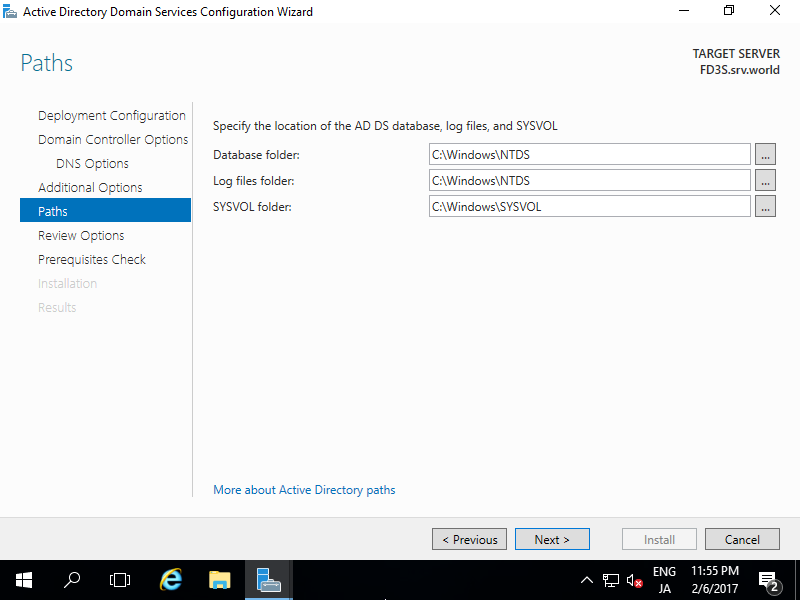
| [8] | Specify Database folder or Log folder and so on. It's Ok to keep default if you don't have specific requirements. |
|
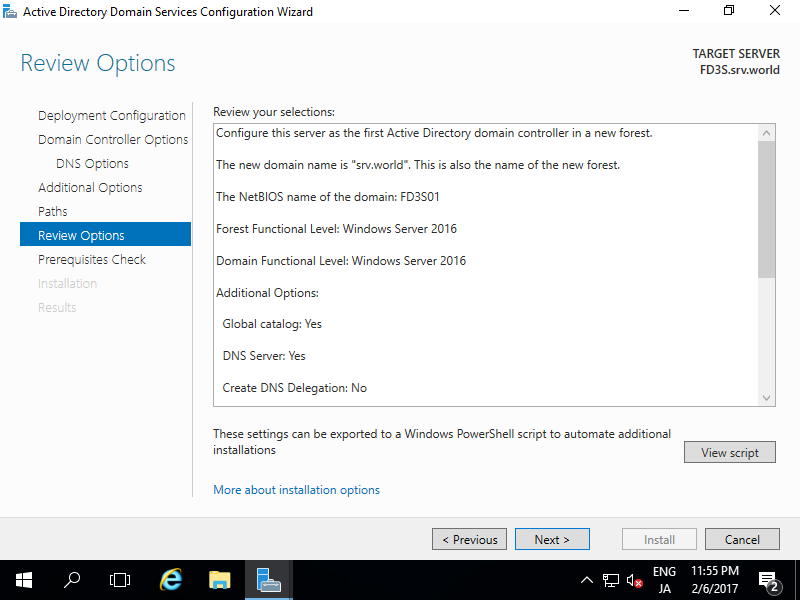
| [9] | Check the contents you configured and click [Next] button. |
|
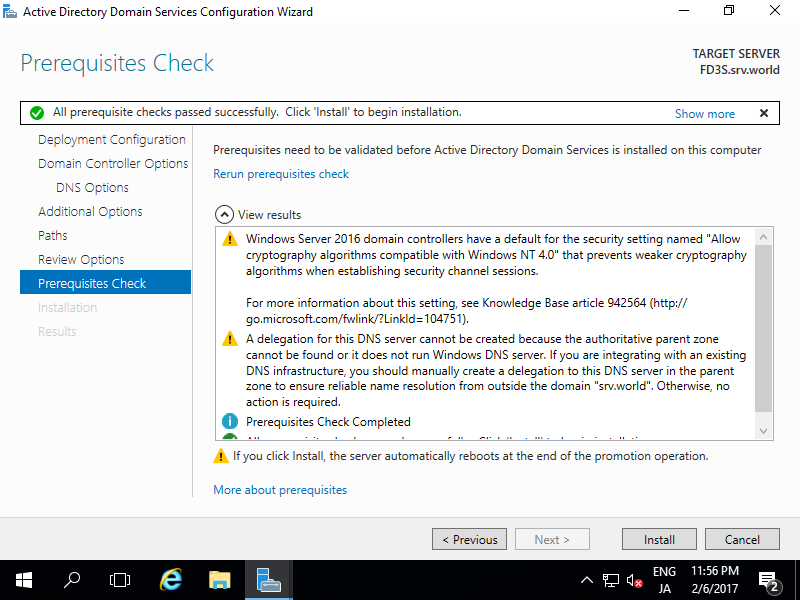
| [10] | Click [Install] button. |
|
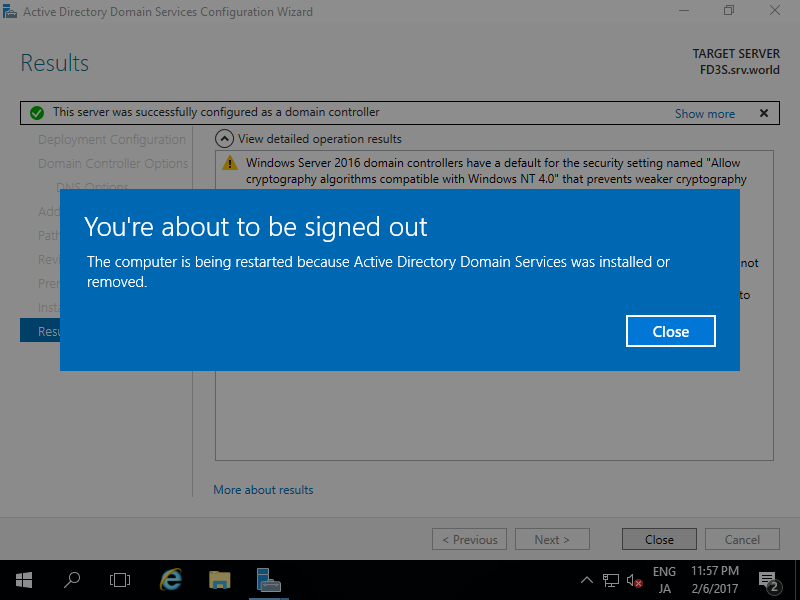
| [11] | After finishing installation, System will restart. |
|
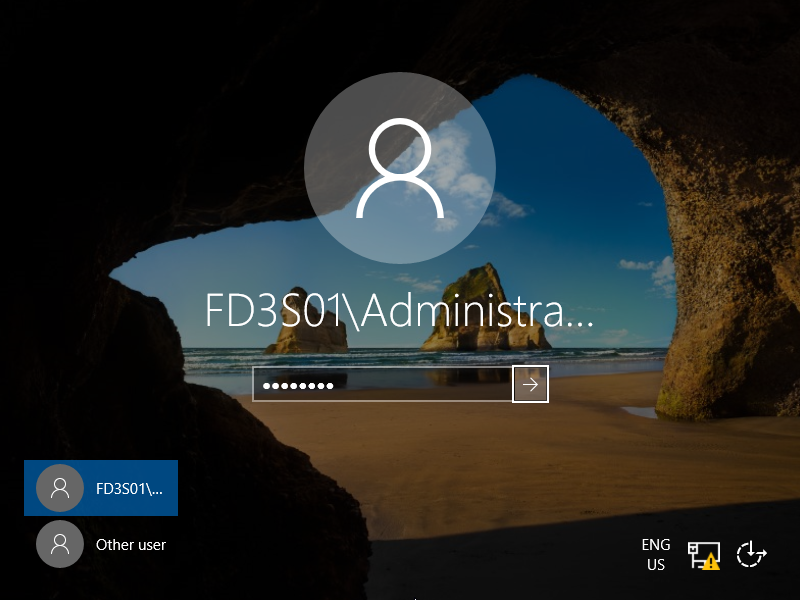
| [12] | After restarting System, logon name is changed as [Domain name]\[User name]. |
|